
QuickStyle template
Customizable editorial style sheet
What if you had just one style sheet that contained all the editorial style options you ever needed, customized to your clients and industries?

‘Great news for editors!’
‘QuickStyle is great news for editors! Creating a style sheet for a project or client can be quite tedious, but thanks to the QuickStyle template, now it’s a breeze! I’ve tested the template and I’m delighted with it. It will save time and produce a really professional-looking style sheet that I can share with colleagues and clients.’
Create a fully tailored style sheet in a fraction of the time
For freelance copyeditors and proofreaders, the style sheet is key way of demonstrating the quality of our editorial service. It’s also how we provide our clients with clarity and transparency about the editorial decisions we’ve made in their files.
But creating a full style sheet from scratch for every project takes time, especially if you work with multiple clients across different industries, genres, topics and types of project.
Swiftly select the style options you need for each project, and easily ensure full transparency and clarity for your clients about the editorial decisions you’ve made and why.
All while delivering a memorable style sheet that’s consistent with your branding.
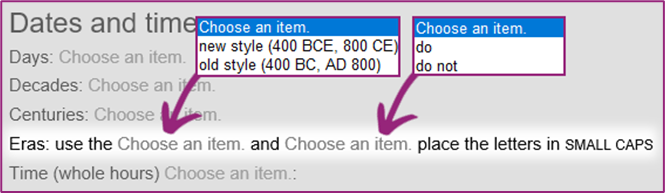
The QuickStyle customizable editorial style sheet template lets you pick from prepopulated options, radically speeding up the process of preparing a comprehensive, professionally polished style sheet.
(Example: exact details may vary between the PC and Mac versions.)
Birds' eye view
Almost 150 prepopulated combo boxes
Ready to use but fully customizable if needed
Suitable for any client or project
Comprehensive guidance and tips
Guidance on adding your branding
£45 (inc. tax)

‘The PERFECT thing to make my life easier’
‘As an editor, I’m all about efficiency matched to precision. And Hazel Bird’s new QuickStyle template is the PERFECT thing to make my life easier. While I do have my own format of style sheet and the publishers I work with have their own as well, it’s as easy as copy/pasting into the other Word document. I don’t have to spend time searching or typing things out. I just choose and move on! The sheet is particularly helpful for editors whose projects span style guides or languages. It increases efficiency and reduces headache. I HIGHLY recommend this for all editors who write style sheets. Thank you, Hazel, for solving a problem I never realized was taking so much time!’

‘This brilliant new resource is a game-changer’
‘I rarely use the term “game-changer”, but it’s the best word to describe this brilliant new resource. I’ve been using it for a couple of weeks, and it has saved me so much time! Setting up a regular style sheet for a new project can be time-consuming – there are so many potential customisations to make, depending on the project. Hazel’s solution is perfect. QuickStyle contains many possible options for every element of language you need to consider when editing. Just open the template, rename it for your project, and you’re away! The template is easy to use out of the box or to customise if you need to add edge cases. If your author or publisher has a specific request that isn’t in the template, you can simply add it as an option and carry on.’
Debbie Emmitt
Editor and proofreader
Radically speed up the process of creating comprehensive style sheets that demonstrate your value to your editing and proofreading clients.
The QuickStyle template ships with almost 150 prepopulated combo boxes (dropdowns) with many of the most common editorial options used in English-language editing around the world.
It is ready to be used as is – the hard work has all been done for you.
But you might want to customize QuickStyle for your specific clients and projects. It therefore comes with comprehensive instructions for both PC and Mac users, covering:
- How to change the appearance of your style sheets
- How to add, delete and modify combo boxes
- Tips for working with combo boxes
- How to create a cleaned-up document ready to send to your clients
- Advanced options for combo boxes
Troubleshooting and FAQs
£45 (inc. tax)
Want to see QuickStyle in more depth?
Liz Dexter has kindly published a thorough review of QuickStyle on her LibroEditing blog. Take a look for more screenshots and a thorough breakdown of QuickStyle’s features.

‘Easily modified to any client’
‘Hazel Bird has created a customisable style sheet template called QuickStyle using Word’s functionality. Hazel provides an excellent, multi-page instruction guide to lead you through the extensive range of combo box item possibilities. From how to personalise the style sheet, use and modify the combo boxes, to cleaning the style sheet ready for delivery of a project to client. The template is easily modified to any client. Highly recommended.’
Annie Deakins
Freelance proofreader and editor

‘A boon to busy editors’
‘QuickStyle will be a boon to busy editors. In fact, the busier you are, the better this gets! I always disliked creating a style sheet based on the closest existing one I had, but making them from scratch took away from precious editing time. Hazel has solved this issue with a visually simple, extensive and fully customisable template tool. Getting to grips with QuickStyle was easy, thanks to the clear instructions, and soon I had a handsome, fully personalised, well structured style sheet that reflects well on my business as well as my editing. I’ll be using QuickStyle regularly from here on out.’
Anna Kealy
Editor

‘Quick and easy... even if you’ve never heard of combo boxes before’
‘Hazel’s QuickStyle style sheet template is well organized and extremely comprehensive, covering everything that most editors will ever need to include on a style sheet, and her clear instructions make it quick and easy to customize, even if you’ve never heard of combo boxes before. The boxes come populated with the majority of the options editors are likely to encounter, and once you’ve customized the template to your own branding and fine-tuned it for your kind of work, setting up a style sheet for a new project is a matter of zipping through and selecting the relevant options, and everything is laid out clearly, with no danger of typos!’
Sue Browning
Editor

‘QuickStyle... will save you a lot of time’
‘What a wonderful tool! QuickStyle is comprehensive, fully adaptable to your specific needs and easy to use. The written instructions are clear and the addition of examples and figures makes it even easier to create a bespoke style guide for each client or project. Taking the time to set up QuickStyle at the beginning of your project will save you a lot of time further down the line, especially with return clients.’
Jane Pocock
English editor for non-native speakers
QuickStyle customizable editorial style sheet template
Each purchase includes a single-user licence. For bulk orders, please get in touch.
£45 (inc. tax)

Would you like your handovers to work harder for you?
Students on my course Perfect Handovers for Editorial Projects receive a 50% discount on QuickStyle. See how this course can help you get more repeat business with handovers that save you time and showcase your value.
‘This application is a winner’
‘QuickStyle is a time saver! This application is a winner, allowing an editor to quickly pull together the details needed to create a valuable stylesheet—customized for every author.’
Teresa Crumpton
Editor
Frequently asked questions
Do I have to install an add-in?
No, QuickStyle isn’t an add-in. It’s a Word document that you open and use like any other.
Are there versions for PC and Mac?
Yes, all purchases of QuickStyle come with versions for PC and Mac, including separate guidance for each. Make sure you use the correct version, because the functionality on which QuickStyle is based is very different between PC and Mac.
Does QuickStyle require macros?
No, it doesn’t. If you like, you can use a macro to clean up QuickStyle before you send it to your client (so your client only sees the combo box options that you have selected for their project). The guidance shows you how to do this. But the guidance also contains non-macro methods for cleaning up your style sheet.
Can I use QuickStyle with my existing macros?
The general answer to this question is ’yes’. Outside the combo boxes, QuickStyle operates like any other Word document, and you can use macros to edit, format and add to the text as you would normally.
Of course, given the vast array of macros that editors use, I can’t guarantee there won’t be any conflicts. But in principle there is nothing about QuickStyle that should stop a macro working outside the combo boxes.
Feel free to contact me if you’d like to ask about a specific macro.
How easy is it to customize Quickstyle?
Customizing QuickStyle is straightforward, and the 25-page guidance PDF that ships with the template will help you if you get stuck.
The guidance covers how to create, delete and modify combo boxes; adding your branding; and lots more tips and troubleshooting advice.
Will my clients see the combo boxes?
Not unless you want them to. The guidance PDF offers multiple methods for cleaning up your style sheet so the combo boxes are completely hidden from your clients.
Can I copy and paste a QuickStyle style sheet into my client's template?
Yes, QuickStyle is a Word document like any other. You can copy and paste its content into any other document, just like you would normally.
How does QuickStyle use published style guides?
One of QuickStyle’s strengths is that it is not tied to any specific style guide. Instead, it draws from a wide range of style guides to provide you with all the major options you are likely to need.
This approach keeps QuickStyle succinct and easy to use. The various published style guides often overlap in their advice, and some style guides offer multiple options. Additionally, it is common for publishers and authors to use specific style guides – but with caveats and exceptions. QuickStyle simplifies this vast array of possibilities, reflecting the most common options used by real editors.
You can always customize the template to add further mentions of specific style guides that are relevant to your work. The guidance that comes with QuickStyle explains how you can do that.